
Converting cameras
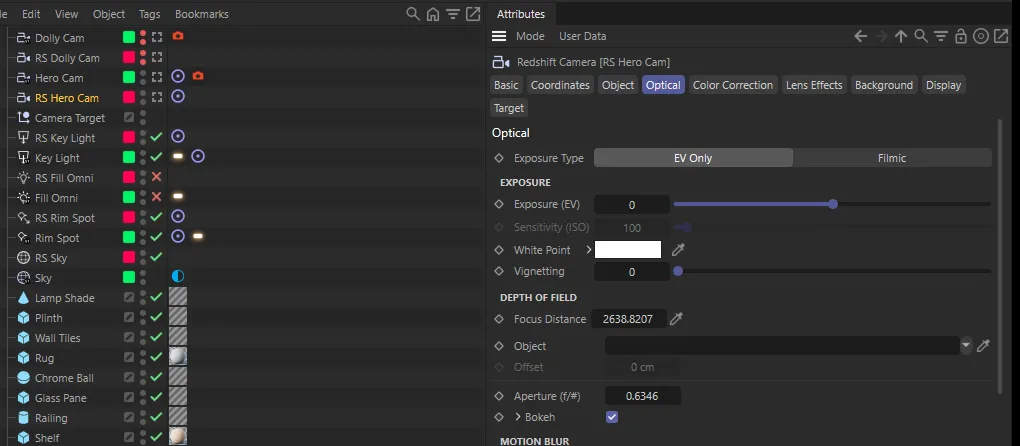
Octane cameras in Cinema 4D are ordinary cameras carrying an Octane Camera tag. For each
one, the converter adds a Redshift Camera object directly below it in the Object Manager,
with the same parent, named RS <camera name>. The original camera and its tag stay as they
are unless you tick Delete Octane Cameras.
What carries across
Section titled “What carries across”| From | To the Redshift Camera |
|---|---|
| Position and rotation (in world space) | Position and rotation |
| Position, rotation, scale and visibility animation | The same animation, keys and tangents included |
| Focal length | Focal Length |
| Sensor size | Sensor Size |
| Focus distance | Focus Distance |
| Octane f-stop | Aperture (f/#) — and Bokeh switched on if the Octane camera’s Aperture is above 0 |
| Animation on focal length, sensor size, focus distance and the Octane f-stop | The same animation |
| Visible in editor / renderer | The same |
| Other tags — Target, Align to Spline, Constraint and so on | Copied to the Redshift Camera |
| Social Frame tag | A new Social Frame tag, if the Social Frame plugin is installed |
If the original camera was the viewport’s active camera, the viewport switches to the Redshift Camera. If it was selected, the Redshift Camera is selected instead.
What doesn’t
Section titled “What doesn’t”- Octane’s focus object and auto-focus, bokeh shape, motion blur, clipping, lens distortion, and the Octane post-processing and imager settings aren’t carried across. Set them up in Redshift.
- The Octane camera type isn’t read — every camera becomes a standard Redshift Camera, so a panoramic or baking camera needs setting up by hand.
Keeping or deleting the originals
Section titled “Keeping or deleting the originals”Delete Octane Cameras deletes each original camera once its Redshift Camera exists. The Redshift Camera already has copies of its tags and animation, so nothing is lost — but objects parented under the original camera are deleted with it. Move them first.
With the option off, the originals stay in the Cameras ▸ Octane layer and the new cameras go into Cameras ▸ Redshift.