
Nuke Octane
Nuke Octane removes Octane from the scene, so it opens cleanly on a machine without Octane. Run it once you’re happy with a conversion, or on its own to strip Octane out of any scene. Run it in a Cinema 4D that has Octane installed, so every Octane item is recognised.
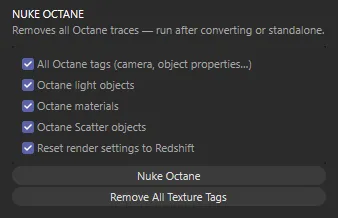
The options
Section titled “The options”All are on by default. Untick what you want to keep.
| Option | Removes |
|---|---|
| All Octane tags (camera, object properties…) | Every Octane tag on every object — Camera, light, Daylight, Environment and Object tags. |
| Octane light objects | Objects that are Octane’s own object types, except Scatter (it has its own option). |
| Octane materials | Every Octane material, converted or not. |
| Octane Scatter objects | Every Octane Scatter, with the objects under it. |
| Reset render settings to Redshift | If the active render settings use Octane, switches their renderer to Redshift and adds Redshift’s settings to them. |
Click Nuke Octane and confirm.
Objects in the scene that use an Octane material lose that material when it’s removed. Convert with Apply RS Materials to objects first, so they’re already using the Redshift versions.
Nuke Octane is one undo step: Edit ▸ Undo (Ctrl+Z / Cmd+Z) brings everything back.
The status line says how many items were removed; the Console lists each one. If the scene
has been saved, a Nuke report, <scene name>_nuke_report.txt, is written next to it with the
count of tags, objects, Scatters and materials removed.
Remove All Texture Tags
Section titled “Remove All Texture Tags”Remove All Texture Tags deletes every Texture tag — every material assignment — from every object in the scene, whichever renderer the material belongs to. Use it when you want to reassign materials from scratch. It asks first, and Edit ▸ Undo brings the tags back in one step.