
Converting materials
Every Octane material in the Material Manager gets a new Redshift node material with the same name. Most become a Redshift Standard Surface; Mix materials become a Material Blender. Your Octane materials aren’t changed. With Apply RS Materials to objects on, every object that used an Octane material is switched to its Redshift version.
Each material is converted on its own, so a problem with one never stops the rest — it’s listed in the report and the conversion carries on.
Which Octane materials convert
Section titled “Which Octane materials convert”| Octane material | Becomes |
|---|---|
| Universal, Glossy, Diffuse | Standard Surface. Diffuse has no reflection. |
| Metallic | Standard Surface with Metalness at 1, using the Metallic colour as its base colour. |
| Specular | Standard Surface set up as glass — see Glass. Marked for review. |
| Standard Surface | Standard Surface — see Octane Standard Surface. |
| Mix | Material Blender — see Mix materials. |
| Toon | Standard Surface from its basic settings, marked for review. |
| Composite, Portal, Shadow Catcher, Hair and any other Octane material | A plain grey Standard Surface with default settings, marked for review. Rebuild these by hand. |
What carries across
Section titled “What carries across”For Universal, Glossy, Diffuse, Metallic, Specular and Toon materials:
| Octane | Redshift Standard Surface |
|---|---|
| Diffuse (albedo) colour or image | Base Color |
| Specular colour | Reflection Color — a black specular colour turns reflection off |
| Roughness value or image | Reflection Roughness |
| Index of refraction | Reflection IOR |
| Normal map | Bump Map node set to tangent-space normal, into Bump Input |
| Bump image (used when there’s no normal map) | Bump Map node set to height, into Bump Input |
| Bump height | Bump Map scale |
| Transmission image | Subsurface Scatter Color, for translucency |
| Opacity image | Opacity Color (or a Sprite node — see Leaves and plants) |
| Blackbody emission colour and power | Emission Color, and Emission Weight = power × 0.01 (100 W → 1) |
| UV transform (scale, rotation, offset) | UV Context Projection node |
Images, and what sits between them
Section titled “Images, and what sits between them”For each slot, the converter follows the Octane node tree down to the first image file it finds — in an Octane Image Texture or a Cinema 4D Bitmap — and loads that file into a Redshift Texture Sampler. Nodes in between, such as Multiply or Grayscale, are stepped through and not rebuilt.
An Octane Color Correction node on the way is rebuilt as a Redshift Color Correct:
- Brightness, Gain and Exposure combine into Level (capped at 10).
- Saturation, Gamma, Contrast and Hue carry across, rescaled to Redshift’s ranges.
- Invert has no Redshift equivalent and is dropped.
A slot driven only by a procedural (noise, gradient, checks and so on) with no image behind it keeps the material’s plain colour or value instead. Rebuild the procedural in Redshift.
UV transforms
Section titled “UV transforms”An Octane Transform — on its own or inside a Cinema 4D UVW Transform — becomes a UV Context Projection node feeding the whole material. Octane scale is inverted into Redshift tiles, so an Octane scale of 10 becomes 0.1 tiles; rotation and offset carry across. The converter uses the first transform it finds, for every texture in that material. A UV Context Projection node is added whenever a material has an image, transform or not.
These become glass — a Standard Surface with full refraction:
- every Octane Specular material;
- Universal and Glossy materials whose names contain glass, crystal, diamond, water, ice, gem, refract or liquid.
What carries across: the transmission colour or image (to Refraction Color), the index of refraction, Thin wall, and roughness (applied to both reflection and refraction). Reflection is always switched on and base colour is set to black, so the glass gets its Fresnel highlights whatever the Octane specular colour was.
Two things are approximate, and each adds a warning to the report:
- Dispersion — Octane’s dispersion value is copied into Redshift’s Abbe number as it is. The two aren’t measured the same way, so retune it if dispersion looks wrong.
- Scattering Medium — Octane’s absorption colour is folded into the refraction colour as a flat tint. Depth-based absorption isn’t rebuilt; for thick coloured glass, set up a Redshift volume by hand.
Leaves and plants
Section titled “Leaves and plants”Materials whose names contain leaf, leaves, plant, foliage, vegetation, frond or grass get a Sprite node between the Standard Surface and the output. The opacity image becomes the Sprite’s cut-out, at a threshold of 0.1 — the usual Redshift set-up for cut-out leaves. A transmission image goes to Subsurface Scatter Color, as for any material; the converter doesn’t change the subsurface weight, so if the translucency doesn’t show, check it on the material.
Octane Standard Surface
Section titled “Octane Standard Surface”What carries across: base colour or image, metalness, specular weight, colour, roughness (value or image) and IOR, the transmission-colour image (to Subsurface Scatter Color), emission weight and colour, normal or bump map with bump height, the opacity image, and UV transforms.
What doesn’t: coat, sheen and subsurface layers, base weight, diffuse roughness, a metalness image, emission images, thin wall, a plain opacity value (only an opacity image), and transmission as refraction — a glass built on an Octane Standard Surface needs its refraction set up by hand.
Mix materials
Section titled “Mix materials”Each Octane Mix becomes a Redshift material with a Material Blender. Two Reference nodes point at the converted versions of the Mix’s two materials — the first as the base, the second as layer 1. The mix amount becomes the blend:
- an image → a Texture Sampler;
- a Cinema 4D Noise → a Redshift Maxon Noise with the same type, colours, scale, octaves, clipping, brightness, contrast, animation and seed. Marked for review: check the pattern and scale match;
- any other procedural → a flat grey at the Mix’s amount value, marked for review;
- a plain amount → a flat grey at that value.
Mix materials are converted after all the others, so their references have something to point at. A Mix that uses another Mix may find it not converted yet — the reference is left empty and the report says so. Point it at the right material in the node editor.
Materials that already exist
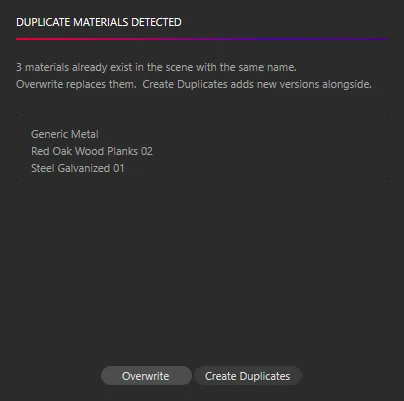
Section titled “Materials that already exist”Before converting, the converter checks for materials that aren’t Octane but share a name
with an Octane material — usually from an earlier conversion. Cinema 4D numbers a repeated
name, so Wood.1 or Wood.2 counts as a match for Wood. If it finds any, it lists them
and asks:
- Overwrite — deletes those existing materials, then converts. Objects using them get the new Redshift material.
- Create Duplicates — converts anyway; you’ll have two materials with each name.
Closing the window cancels the conversion. Overwrite deletes any non-Octane material with
a matching name (or that name plus a .<number>), not only Redshift ones — check the list
first.
Not converted
Section titled “Not converted”- Displacement.
- Emission other than Blackbody emission (Texture emission, for example).
- A Metallic material’s colour image — its plain colour is used.
- The metallic amount on a Universal material — set Metalness by hand.
- Procedural textures, except a Noise driving a Mix amount.
Everything not converted is either listed in the report or left at Redshift’s default. Save the report and work through Needs review first.
Layers
Section titled “Layers”Converted materials go into a Materials ▸ Redshift layer and the Octane originals into Materials ▸ Octane, so you can show, hide or select either set from the Layer Manager.