
The panel
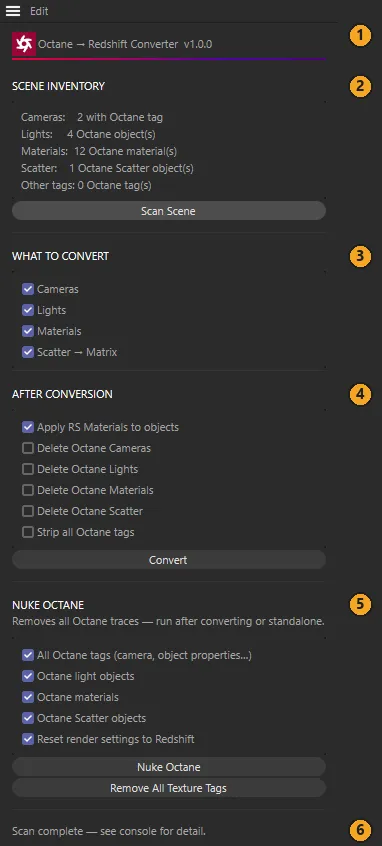
Open it from Extensions ▸ Chroma ▸ Octane to RS Converter. The panel reads top to bottom in the order you use it: see what’s there, choose what to convert, choose how to tidy up, convert. Nuke Octane at the bottom is separate — it removes Octane from the scene.
The header
Section titled “The header”The icon at the top left opens the licence window — so does Edit ▸ License… in the panel’s menu. The panel title shows the version you’re running.
Scene Inventory
Section titled “Scene Inventory”A count of the Octane parts of the active scene:
| Line | What it counts |
|---|---|
| Cameras | Cameras carrying an Octane Camera tag. |
| Lights | Octane lights — Cinema 4D lights with an Octane light tag, plus objects with an Octane Daylight or Environment (HDRI) tag. |
| Materials | Octane materials in the Material Manager, of any kind. |
| Scatter | Octane Scatter objects. |
| Other tags | Any other Octane tags on objects, such as Octane Object tags. |
The inventory scans when the panel opens and again whenever you switch to another scene. Click Scan Scene to refresh it after you’ve changed something. The full list, with every object and material by name, goes to the Console (Extensions ▸ Console).
What to Convert
Section titled “What to Convert”| Option | What it does |
|---|---|
| Cameras | Adds a Redshift Camera beside every Octane camera. Converting cameras |
| Lights | Adds a Redshift light beside every Octane light. Converting lights |
| Materials | Builds a Redshift material for every Octane material. Converting materials |
| Scatter → Matrix | Adds a MoGraph Matrix beside every Octane Scatter. Scatter |
All four are on by default. Untick any you want to leave alone.
After Conversion
Section titled “After Conversion”These run as part of Convert, after the conversion itself. Each Delete… option is only available when the matching pass above is ticked.
| Option | Default | What it does |
|---|---|---|
| Apply RS Materials to objects | On | Points every material assignment (Texture tag) that used a converted Octane material at its new Redshift material. Needs Materials. |
| Delete Octane Cameras | Off | Deletes each original camera once its Redshift Camera exists. |
| Delete Octane Lights | Off | Deletes each original light, Daylight or HDRI object once its Redshift light exists. |
| Delete Octane Materials | Off | Deletes the Octane materials that were converted. |
| Delete Octane Scatter | Off | Deletes each Octane Scatter once its Matrix exists. |
| Strip all Octane tags | Off | Removes Octane Object tags from every object, and the Octane light tag from lights you keep. |
More on each, and on undoing, in After conversion & clean-up.
Click Convert to run. The Console is cleared first, so what’s in it afterwards is this run alone.
Nuke Octane
Section titled “Nuke Octane”Removes Octane from the scene — after converting, or on its own. Remove All Texture Tags sits here too. See Nuke Octane.
The status line
Section titled “The status line”The line at the bottom of the panel says what just happened: the scan finished, how many of each thing were converted, how many errors (if any), or what Nuke removed.
When a conversion finishes
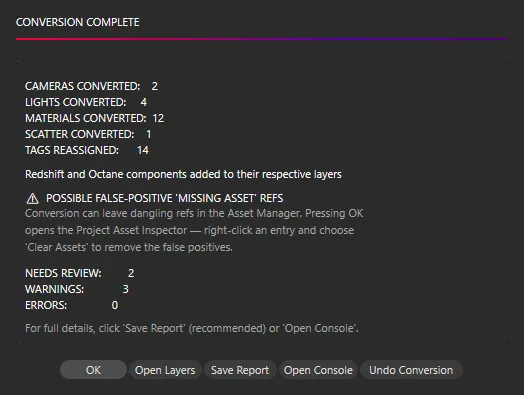
Section titled “When a conversion finishes”The Conversion Complete window lists how many cameras, lights, materials and scatters were converted and how many material assignments were switched, then how many items need review, and how many warnings and errors there were.
| Button | What it does |
|---|---|
| OK | Closes the window. If materials were converted, it then opens the Project Asset Inspector — see “Missing assets” after converting. |
| Open Layers | Opens the Layer Manager, where the converter has sorted everything into layers. |
| Save Report | Saves the full report as a text file — every converted item, everything that needs review and why. Recommended. |
| Open Console | Closes the window and opens the Console, where the same report is printed. |
| Undo Conversion | Puts the scene back as it was before you clicked Convert. |
If your scene has been saved, the report is also written next to it automatically, as
<scene name>_conversion_report.txt.
Converting again
Section titled “Converting again”Click Convert a second time on the same scene, in the same session, and the converter asks how to proceed:
- Overwrite — removes the Redshift cameras, lights and Matrix objects from the earlier
run (those named
RS <original name>), then converts again. - Create Duplicates — converts again and keeps what the earlier run made.
- Cancel.
For materials, the duplicate-names check asks separately.