
Getting started
What you need
Section titled “What you need”- Cinema 4D 2024 to 2027, on Windows or macOS (Apple Silicon).
- Redshift, installed and working in that Cinema 4D.
- Octane, installed in the same Cinema 4D, for the conversion itself. The converter reads the scene’s Octane materials, tags and Scatter objects, and some of them it can only recognise through the Octane plugin. Once a scene is converted and you’ve run Nuke Octane, it no longer needs Octane.
Install
Section titled “Install”The easiest way to install and license the converter is the aescripts + aeplugins manager app. Restart Cinema 4D after installing.
Open the converter from Extensions ▸ Chroma ▸ Octane to RS Converter. If the Chroma menu is switched on in your Chroma preferences, it’s also in the Chroma menu in the main menu bar. The panel is an ordinary Cinema 4D window — dock it wherever you like and it comes back with your layout.
The first time, the licence window asks for your serial number. Type trial instead to start
a 14-day trial. See Licensing & support.
Your first conversion
Section titled “Your first conversion”- Save a copy of your scene. The converter works on the open scene, in place.
- Open the panel. The Scene Inventory fills in straight away with how many Octane cameras, lights, materials and Scatter objects the scene has.
- Under What to Convert, leave everything ticked — or untick what you want to leave alone.
- Under After Conversion, leave Apply RS Materials to objects ticked. Leave the Delete… options off for a first run: you can compare old and new, and tidy up later.
- Click Convert.
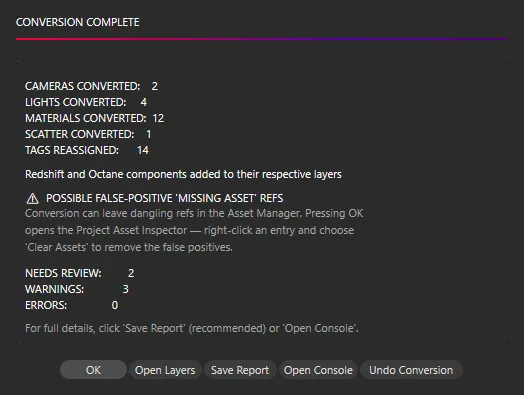
When it finishes, the Conversion Complete window shows what was converted and how many items need a look. Click Save Report to keep the full list — it names every material, light and camera that needs attention and why. Then:
- Render a frame and compare it with your Octane render.
- Work through the report’s Needs review and Warnings lines.
- Retune light intensities — they’re a starting point, not a match. See Converting lights.
Changed your mind? Undo Conversion in that same window puts the scene back. See Undoing a conversion.